
Expression Transformation Overview:
Transformation type:
Passive
Connected
Use the Expression transformation to calculate values in a single row. For example, you might need to adjust employee salaries, concatenate first and last names, or convert strings to numbers. You can also use the Expression transformation to test conditional statements before you pass the results to a target or other transformations.
Use the Expression transformation to perform non-aggregate calculations. To perform calculations involving multiple rows, such as sums or averages, use the Aggregator transformation.
The naming convention for an Expression transformation is EXP_Transformation Name.
You can enter multiple expressions in a single Expression transformation by creating an expression for each output port.
Note: After you make the transformation reusable, you cannot copy ports from the source qualifier or other transformations. You can create ports manually within the transformation.
- Passive and connected transformation.
Use the Expression transformation to calculate values in a single row before we write to the target. For example, we might need to adjust employee salaries, concatenate first and last names, or convert strings to numbers.
Use the Expression transformation to perform any non-aggregate calculations.
Example: Addition, Subtraction, Multiplication, Division, Concat, Uppercase conversion, lowercase conversion etc.
We can also use the Expression transformation to test conditional statements before we output the results to target tables or other transformations. Example: IF, Then, Decode
There are 3 types of ports in Expression Transformation:
- Input
- Output
- Variable: Used to store any temporary calculation.
Calculating Values:
To use the Expression transformation to calculate values for a single row, we must include the following ports:
- Input or input/output ports for each value used in the calculation: For example: To calculate Total Salary, we need salary and commission.
- Output port for the expression: We enter one expression for each output port. The return value for the output port needs to match the return value of the expression.
We can enter multiple expressions in a single Expression transformation. We can create any number of output ports in the transformation.
Example: Calculating Total Salary of an Employee
- Import the source table EMP in Shared folder. If it is already there, then don’t import.
- In shared folder, create the target table Emp_Total_SAL. Keep all ports as in EMP table except Sal and Comm in target table. Add Total_SAL port to store the calculation.
- Create the necessary shortcuts in the folder.
Creating Mapping:
- Open folder where we want to create the mapping.
- Click Tools -> Mapping Designer.
- Click Mapping -> Create -> Give mapping name. Ex: m_totalsal
- Drag EMP from source in mapping.
- Click Transformation -> Create -> Select Expression from list. Give name and click Create. Now click done.
- Link ports from SQ_EMP to Expression Transformation.
- Edit Expression Transformation. As we do not want Sal and Comm in target, remove check from output port for both columns.
- Now create a new port out_Total_SAL. Make it as output port only.
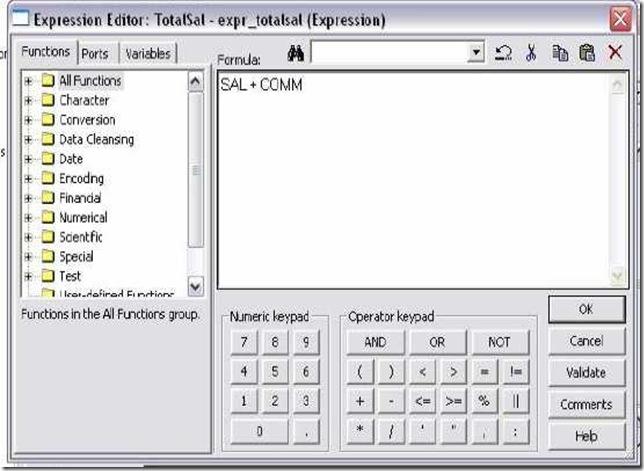
- Click the small button that appears in the Expression section of the dialog box and enter the expression in the Expression Editor.
- Enter expression SAL + COMM. You can select SAL and COMM from Ports tab in expression editor.
- Check the expression syntax by clicking Validate.
- Click OK -> Click Apply -> Click OK.
- Now connect the ports from Expression to target table.
- Click Mapping -> Validate
- Repository -> Save
Create Session and Workflow as described earlier. Run the workflow and see the data in target table.
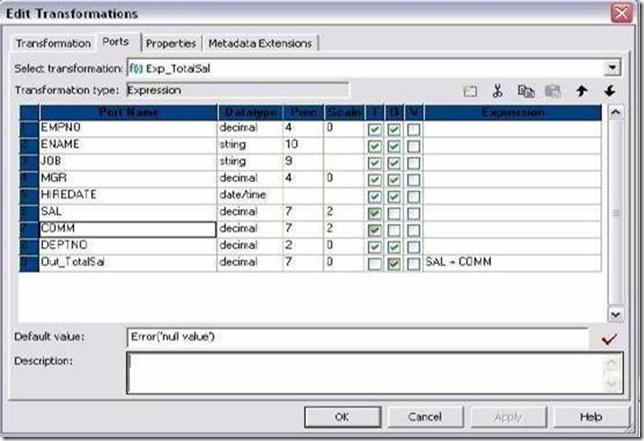
As COMM is null, Total_SAL will be null in most cases. Now open your mapping and expression transformation. Select COMM port, In Default Value give 0. Now apply changes. Validate Mapping and Save.
Refresh the session and validate workflow again. Run the workflow and see the result again.
Now use ERROR in Default value of COMM to skip rows where COMM is null.
Syntax: ERROR(‘Any message here’)
Similarly, we can use ABORT function to abort the session if COMM is null.
Syntax: ABORT(‘Any message here’)
Make sure to double click the session after doing any changes in mapping. It will prompt that mapping has changed. Click OK to refresh the mapping. Run workflow after validating and saving the workflow.
Performance Tuning :
Expression transformation is used to perform simple calculations and also to do Source lookups.
- Use operators instead of functions.
- Minimize the usage of string functions.
If we use a complex expression multiple times in the expression transformer, then Make that expression as a variable. Then we need to use only this variable for all computations.
QUESTIONS:
1. What is an expression transformation?
An expression transformation is used to calculate values in a single row.
An expression transformation is used to calculate values in a single row.
Example: salary+1000
2. How to generate sequence numbers using expression transformation?
Create a variable port in expression transformation and increment it by one for every row. Assign this variable port to an output port.
3. How to duplicates from expression transformation without using sorter before that
1) we can distinguish between unique and duplicate records in Informatica by using forward reference technique ,in the sense, we can store the previous rec key value in Variable_Port and can be compared with the previous rec key value , but Data has to be come in sorted order on that key column , for that we should use sorter transformation.
once if you find the duplicate rec by comparing , you can flag that rec as duplicate and you can divert it to other target.
2) Without using sorter
in order to collect only unique records for flat file , just use aggregator before exp transformation, and check group by on the key column where you are expecting duplicate records. so you will get only unique records and duplicate records will be eliminated.
4. Consider the following employees data as source?
Employee_id, Salary
-------------------
10, 1000
20, 2000
30, 3000
40, 5000
5. Design a mapping to load the cumulative sum of salaries of employees into target table?
The target table data should look like as
Employee_id, Salary, Cumulative_sum
-----------------------------------
10, 1000, 1000
20, 2000, 3000
30, 3000, 6000
40, 5000, 11000
6. Design a mapping to get the previous row salary for the current row. If there is no previous row exists for the current row, then the previous row salary should be displayed as null.
The output should look like as
The output should look like as
Employee_id, Salary, Pre_row_salary
-----------------------------------
10, 1000, Null
20, 2000, 1000
30, 3000, 2000
40, 5000, 3000
7. Consider the following employees table as source
Department_no, Employee_name
----------------------------
20, R
10, A
10, D
20, P
10, B
10, C
20, Q
20, S
8. Design a mapping to load a target table with the following values from the above source?
Department_no, Employee_list
----------------------------
10, A
10, A,B
10, A,B,C
10, A,B,C,D
20, A,B,C,D,P
20, A,B,C,D,P,Q
20, A,B,C,D,P,Q,R
20, A,B,C,D,P,Q,R,S
9. Design a mapping to load a target table with the following values from the above source?
Department_no, Employee_list
----------------------------
10, A
10, A,B
10, A,B,C
10, A,B,C,D
20, P
20, P,Q
20, P,Q,R
20, P,Q,R,S


